As part of your grade for each assignment/activity in this course, you will be required to write and submit valid HTML. The HTML Validator service helps you to ensure that your HTML is valid and does not contain any syntax errors.
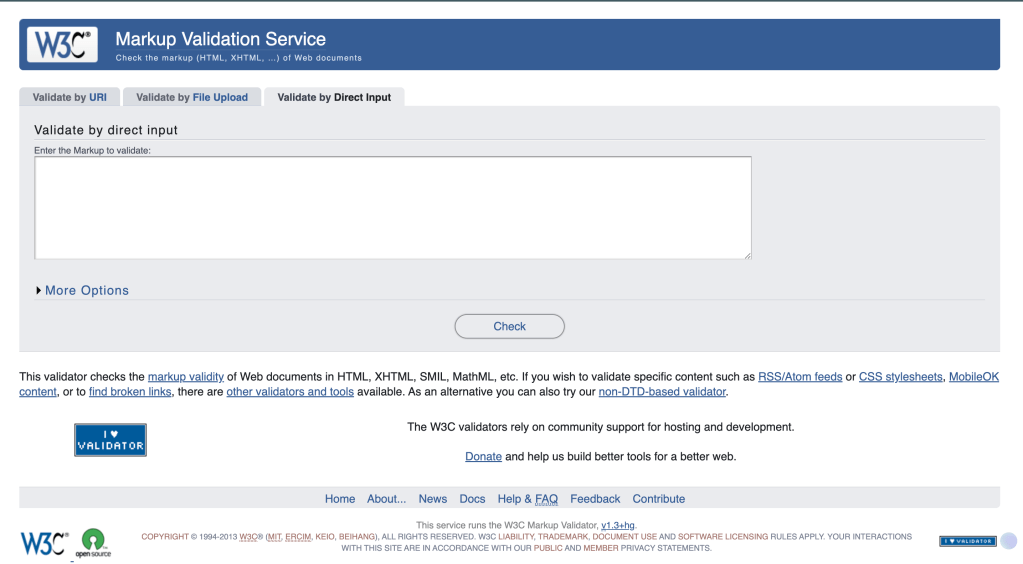
Below you can see a screenshot of the HTML Validator website that displays from the link above, which allows you to enter the address of the HTML you want to test (A URL).

I prefer to paste my code in to the interface to validate it, so i open the “Validate by Direct Input” tab.
To use the validator by pasting in your HTML code, do the following:
- With your HTML file open in your editor, select all of the code in the file (Command/Control + “A” is a shortcut to do this).
- Copy all of the selected code in your file (Command/Control + “C” is a shortcut to do this).
- Head to the HTML Validator website, and click on the “Validate by Direct Input” tab.
- In the text area on the page below the “Enter markup to validate” label, paste your copied HTML code (Command/Control + “V” is a shortcut to do this).
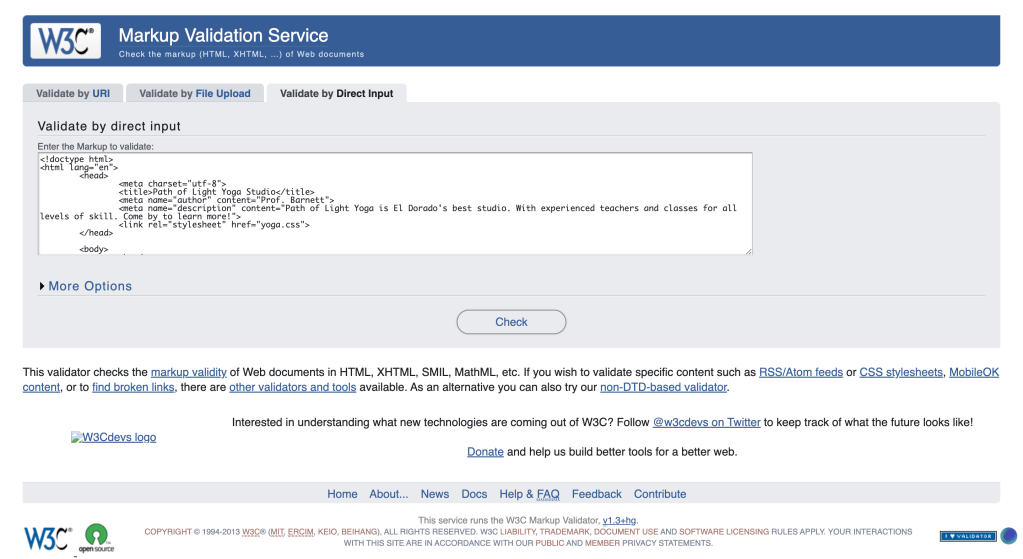
- Click on the “Check” button below the text area.
- When the page refreshes, you should see either a green bar indicating that no syntax errors were found or a list of errors and/or warnings. If your code is passes validation, the page will show a green bar below the code with a message telling you that no errors or warnings were found. This does not mean that your code is perfect, only that it passes validation. You still have to choose the correct tags and grouping methods.

To Find and Fix the Warnings Shown in Your HTML:
Each error or warning will include additional information about the error, including the line in your code where it was found and what the error/warning is.
Your code should not have any warnings, so it is important to fix these. Generally, warnings are given because you are using a semantic container to group some code and have not added a heading to that container. Review your code/content to determine where the heading should be and if all of the content has been grouped correctly.
Errors display for a few reasons, and all should be fixed before submitting code. Some of those reasons:
- You have a tag that should be part of a pair (opening and closing tags required) and you have forgotten or incorrectly typed the closing tag.
- Make sure that all of your tags that should be a pair have both opening and closing tags.
- Make sure that your tag pairs are in the correct order. If you have a span inside of a paragraph, the opening and closing paragraph tags should be outside of the span’s tags. You won’t open a paragraph, open a span, close the paragraph, then close the span. That is not valid.
- You have added some HTML in a format that is not valid.
- Make sure that your tags are written correctly. Including a misspelling or trying to add tags that don’t exist will cause this issue.
- Make sure that your attributes are valid and added correctly. All attributes will be on the opening tag of a pair or inside of a void tag.
Also note that the line number where the validator says the error is may not be the line that you need to fix. If you opened a tag at the top of your page and forget to close it, you may not see the error for the line where you meant to close it. It may show up at the end of the file. Review your code as instructed above to track down the issue.

Using the Validator to Check Your Document Outline
You can also use the validator to check your heading outline to determine whether you’ve forgotten any headings or included headings in your document correctly.
After validating your file and fixing all errors, check the checkbox above the text area that is labeled “outline” and click the “Check” button again.
The outline for your document will display at the bottom of the page, below a copy of the code you have validated.

